
GitHub Copilot in Xcode: How the Native Coding Assistant Works
Requirements, setup, privacy, native-vs-extension tradeoffs, and a safe rollout plan for Swift and Apple-platform teams
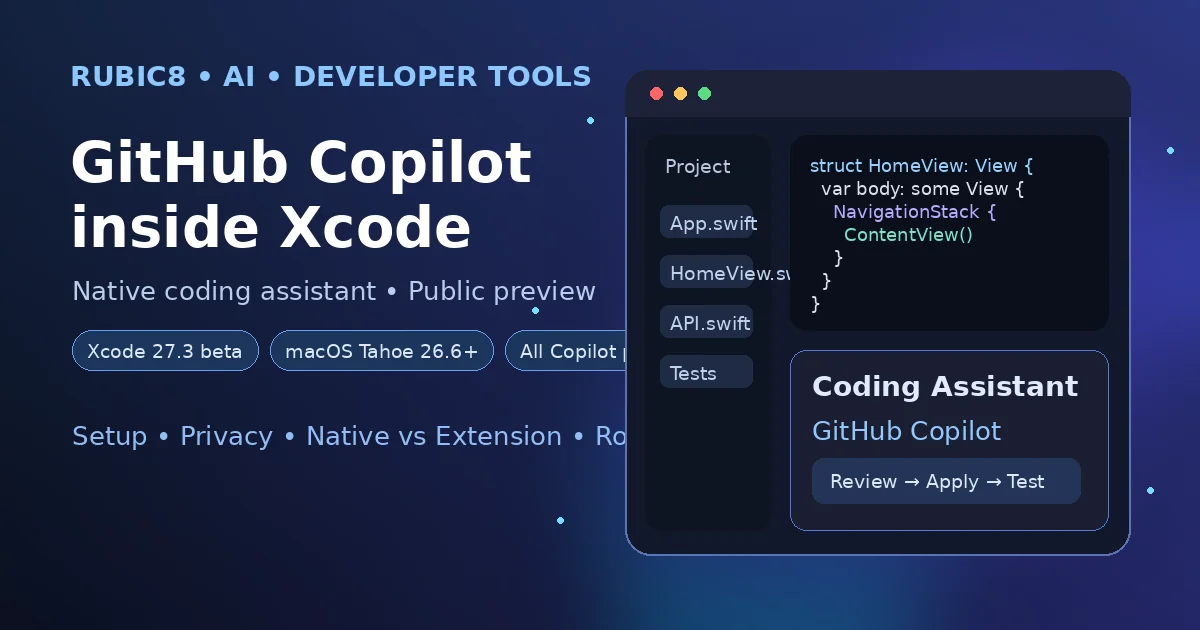
GitHub Copilot has moved one step closer to becoming a native part of the Apple development workflow. On November 4, 2026, GitHub announced that Copilot is now available directly inside Xcode’s built-in coding assistant. The integration is in public preview and begins with Xcode 27.3 beta.
This is not the retirement of the existing GitHub Copilot for Xcode extension. GitHub explicitly says the extension remains a separate option. The important change is that Apple developers can now choose a more native path: configure Copilot from Xcode’s own Intelligence settings and work through the coding assistant that is built into the IDE.
For Swift, SwiftUI, UIKit, macOS, watchOS, visionOS, and other Apple-platform teams, that raises practical questions. What exactly changed? What do you need to install? How is the native coding assistant different from the extension? What project data can an AI provider access? And should a team migrate immediately while the feature is still in preview?
This guide separates confirmed platform behavior from rollout recommendations so you can evaluate the new integration without assuming feature parity that GitHub or Apple has not promised.
What Changed on November 4, 2026?
GitHub’s release is concise but significant. Copilot can now work directly in Xcode’s built-in coding assistant, and the integration is available in public preview starting with Xcode 27.3 beta.
GitHub also confirms three details that matter for planning:
- The existing GitHub Copilot for Xcode extension remains available as a separate workflow.
- All GitHub Copilot plans are supported by the new Xcode coding-assistant integration.
- Setup happens from Xcode > Settings > Intelligence.
Apple’s Xcode 27.3 beta release notes independently list GitHub Copilot as a new Coding Intelligence feature. Apple also states that Xcode 27.3 beta requires macOS Tahoe 26.6 or later.
Primary sources: GitHub Changelog, November 4, 2026 and Apple Xcode 27.3 Beta Release Notes.
Requirements Before You Try It
The preview has a narrower environment requirement than ordinary stable Xcode workflows.
| Requirement | Current requirement |
|---|---|
| Xcode | Xcode 27.3 beta or later preview build that includes the integration |
| macOS | macOS Tahoe 26.6 or later |
| GitHub Copilot | A supported Copilot plan; GitHub says all Copilot plans are supported |
| Configuration path | Xcode > Settings > Intelligence |
Apple’s system requirements page says Xcode 27.3 beta ships with Swift 6.4 and the 27.3 SDK family. Those SDK versions are not a requirement for every project you open, but they are part of the beta toolchain you are installing.
Because the integration currently depends on beta Xcode, production teams should not interpret “available” as “ready to replace every stable developer workstation.” A separate beta install or a controlled pilot machine is a more conservative starting point.
How to Set Up GitHub Copilot in Xcode’s Coding Assistant
The official setup path is intentionally native to Xcode.
- Download Xcode 27.3 beta from Apple Developer Downloads.
- Confirm the Mac is running macOS Tahoe 26.6 or later.
- Open Xcode and go to Xcode > Settings > Intelligence.
- Enable or configure GitHub Copilot as a coding-intelligence provider.
- Open a project and start a conversation in Xcode’s coding assistant.
- Review the project context, requested changes, generated edits, build output, and tests before accepting the result.
Apple documents Command-0 as a way to open the coding assistant. Its coding-intelligence experience supports conversations, transcript and artifacts panes, project-aware work, and the ability to review or roll back changes through conversation history.
The exact sign-in screens and preview controls can change while Xcode 27.3 remains beta. If your UI differs from a screenshot or early guide, follow the current Intelligence settings rather than forcing an older sequence.
Native Coding Assistant vs the Existing Copilot for Xcode Extension
The most important point is that these are currently two choices, not a forced migration.
GitHub says the existing Copilot for Xcode extension remains a separate option. It does not say the native integration has complete one-to-one feature parity with the extension, nor does it announce an extension retirement date.
| Question | Built-in Xcode coding assistant | Existing Copilot for Xcode extension |
|---|---|---|
| Where it lives | Inside Xcode’s native Coding Intelligence experience | Separate GitHub Copilot extension workflow |
| Current status | Public preview in Xcode 27.3 beta | Existing separate option |
| Setup entry point | Xcode > Settings > Intelligence | Extension-specific installation and configuration |
| Should you uninstall the other path immediately? | No. Validate your real workflows first because GitHub has not promised identical behavior or feature coverage. | |
For most teams, the lowest-risk approach is to keep the current extension workflow available while a small group tests the native integration. Compare the tasks you actually care about: explaining unfamiliar code, editing multiple Swift files, generating tests, fixing compile errors, working with SwiftUI previews, and preserving repository-specific instructions.
Why Native Integration Matters
The value is not simply “Copilot inside another panel.” Xcode 27’s Coding Intelligence architecture is becoming a first-class orchestration layer for AI-assisted development.
Apple’s documentation describes an environment where developers can:
- start conversations from different places in the project;
- work with transcript and artifacts panes alongside normal editor panes;
- give an agent project context;
- review changes it makes to project files;
- roll back through conversation history;
- organize conversations by feature or approach;
- run more than one agent conversation while continuing to edit elsewhere.
Copilot entering that built-in environment reduces the need to think of AI assistance as a bolt-on window. It also creates a more direct competition between AI providers at the IDE layer: Apple’s Xcode documentation says Coding Intelligence supports models and agents from multiple providers and can also work with compatible agent protocols and MCP-based tools.
That is strategically more important than a single autocomplete feature. The IDE is becoming the control plane through which developers choose agents, models, project context, tools, and review workflows.
Privacy: Project Context Can Leave the IDE
Native integration does not mean all processing happens locally.
Apple’s setup documentation explicitly warns that after you enable an agent or chat provider in Intelligence settings, the selected agent or model may access project files and other information when processing requests. Apple directs developers to the “About Intelligence in Xcode & Privacy” information in Xcode for provider-specific details.
That has several practical consequences:
- Do not assume a repository is safe to share just because the assistant is built into Xcode.
- Review your organization’s GitHub Copilot policies and data-handling requirements before enabling the preview on sensitive code.
- Keep credentials, signing secrets, private keys, production tokens, and customer data out of prompts and source files wherever possible.
- Check which provider and model are active before sharing a large project context.
- For regulated or contractual repositories, obtain the same security approval you would require for any cloud AI coding tool.
Rubic8’s GitHub Copilot Model Policy API guide explains how enterprise administrators can audit and automate model governance. That policy layer remains conceptually separate from Xcode’s local UI.
Do Not Assume Copilot Local Sandboxing Applies Here
GitHub also offers local sandboxing in Copilot CLI, the Copilot app, and other documented agent-host paths. That is useful, but it should not be casually treated as a security property of the new Xcode integration.
The Xcode announcement does not say that enabling Copilot in Coding Intelligence automatically places all generated tool actions inside the same sandbox used by Copilot CLI or the Copilot app.
Use the controls documented for the client you are actually running. If you also use terminal or app-based agents, see Rubic8’s Copilot local sandboxing guide. Keep the trust boundaries separate when documenting your internal rollout.
A Safe Pilot Workflow for an iOS Team
A native coding assistant can change many files quickly, so the best pilot is deliberately boring.
1. Use a non-critical repository or branch
Choose a small Swift or SwiftUI project with tests. Avoid starting with signing infrastructure, payment logic, authentication, encryption, or release automation.
2. Give the assistant a bounded task
Good first tasks include:
- explain a view model and identify its dependencies;
- add a small SwiftUI setting screen;
- write unit tests for a pure function;
- refactor a duplicated formatter;
- fix a reproducible compiler warning;
- add accessibility labels to a contained screen.
3. Ask for a plan before broad edits
For multi-file changes, ask the assistant to identify affected files, assumptions, and tests first. The goal is not extra ceremony; it is to create a review checkpoint before code changes spread across the project.
4. Review the diff, not just the final chat response
A confident explanation is not evidence that the implementation is correct. Inspect the actual file changes and make sure unrelated configuration, entitlements, package versions, and build settings were not modified.
5. Build and run the smallest useful test set
At minimum, compile the affected target and run the relevant unit tests. For UI work, inspect SwiftUI previews or the simulator where appropriate.
6. Exercise rollback before you need it
Apple documents conversation-history rollback as part of Coding Intelligence. Test it on a disposable change so your team understands what it restores and what still needs normal Git recovery.
Five Practical Swift Tasks to Test First
Explain an unfamiliar concurrency path
Ask Copilot to trace an async call from a SwiftUI action through a service layer and identify where cancellation and error propagation occur. Then verify every claim against the source.
Generate tests around existing behavior
A useful prompt asks the assistant to preserve current behavior, identify edge cases, and write focused tests without changing production code. Review whether the tests actually fail when the target behavior is broken.
Refactor repeated SwiftUI modifiers
Small presentation refactors reveal whether the assistant understands project conventions without exposing the risks of a broad architectural change.
Investigate a compiler error
Provide the exact build error and ask for the smallest fix plus an explanation. This is easier to validate than a speculative “modernize this module” request.
Improve accessibility in one screen
Ask the assistant to inspect labels, traits, Dynamic Type behavior, and focus order, then validate the result with Xcode’s normal accessibility tools. AI suggestions should augment, not replace, platform testing.
What Enterprise Teams Should Check
All Copilot plans may be supported by the preview, but enterprise deployment has more moving parts than plan eligibility.
Before enabling the native path broadly, document:
- which Copilot plan and organization policy applies;
- which Xcode beta build is approved;
- which macOS version is required;
- which repositories are eligible for AI-assisted work;
- whether sensitive files need additional exclusions or process controls;
- which models users are allowed to select;
- how code review and testing requirements apply to AI-generated changes;
- how incidents or unexpected data exposure should be reported.
If you are measuring adoption, do not treat request counts as productivity scores. Rubic8’s Copilot usage metrics guide explains why client, model, token, session, and agent activity are consumption signals rather than proof of task quality.
Should You Migrate from the Extension Now?
For an individual developer who already runs macOS Tahoe 26.6 and is comfortable with Xcode beta software, the native integration is worth testing immediately.
For a production team, “test now” is a better recommendation than “migrate now.” Three reasons stand out:
- It is a public preview. UI, capabilities, and behavior can change.
- It requires Xcode 27.3 beta. Your stable build and release environment may need to remain on another Xcode version.
- The extension still exists. GitHub has not announced that the native path replaces every extension workflow.
Run both paths against a small task matrix and record where each one is stronger, weaker, or simply different. Only remove the extension when the native path covers the workflows your team actually depends on.
A Simple Evaluation Matrix
| Test | What to record |
|---|---|
| Repository explanation | Accuracy, missing context, unsupported assumptions |
| Single-file edit | Diff quality, style consistency, compile result |
| Multi-file task | Planning quality, unrelated edits, build/test result |
| SwiftUI change | Preview behavior, accessibility, state handling |
| Test generation | Meaningful assertions, failure detection, brittleness |
| Rollback | What is restored, what Git still needs to recover |
| Privacy review | Provider, model, project context, repository eligibility |
This matrix is more useful than comparing how impressive the generated prose sounds. A coding assistant should be judged by validated repository outcomes.
Frequently Asked Questions
Is GitHub Copilot now built into stable Xcode?
Not yet based on the November 4 announcement. The native coding-assistant integration is a public preview starting with Xcode 27.3 beta.
What macOS version do I need?
Apple’s Xcode 27.3 beta documentation requires macOS Tahoe 26.6 or later.
Do I need Copilot Business or Enterprise?
No. GitHub states that all Copilot plans are supported by the Xcode coding-assistant integration. Organization and enterprise policies can still affect what is available to managed users.
Does this replace the GitHub Copilot for Xcode extension?
No. GitHub explicitly says the existing extension remains a separate option.
Where do I enable the native integration?
Open Xcode, then go to Xcode > Settings > Intelligence and configure GitHub Copilot there.
Can Copilot access my project files?
Apple says enabled agents or chat providers may access project files and other information when processing requests. Review the privacy information in Xcode and your organization’s AI policies before enabling it on sensitive repositories.
Should I use Xcode beta on my production build machine?
That is a release-engineering decision, not a requirement for evaluating the feature. A safer pilot is to keep stable production tooling intact and test Xcode 27.3 beta separately.
Bottom Line
GitHub Copilot’s arrival inside Xcode’s built-in coding assistant is more than another integration checkbox. It shows where Apple development tooling is heading: AI agents and models are becoming selectable, project-aware participants inside the IDE itself.
The immediate opportunity is straightforward. Developers on macOS Tahoe 26.6 or later can install Xcode 27.3 beta, configure Copilot under Intelligence settings, and evaluate a native workflow without giving up the existing extension.
The disciplined approach is equally straightforward: treat the feature as a preview, protect sensitive repositories, validate project context and provider settings, review every diff, run real tests, and compare the native path with the extension before standardizing on one.
Reviewed: November 5, 2026. Preview requirements and behavior may change in later Xcode or GitHub Copilot releases.
Official Sources
- GitHub Changelog: GitHub Copilot is now available in Xcode’s coding assistant — November 4, 2026
- Apple: Xcode 27.3 Beta Release Notes
- Apple: Xcode SDK and system requirements
- Apple: Setting up coding intelligence
- Apple: Writing code with intelligence in Xcode
Rubic8 Editorial Team
Editorial Team
Rubic8 creates practical guides and free tools for developers, webmasters, and digital publishers. Our fast-changing technical content is reviewed against current primary documentation before publication.
